
Connecting MCP360 with YourGPT
YourGPT turns your MCP360 tools and APIs into a connected automation environment. Everything—from data handling to command execution—happens in one place, reducing friction in your daily work.
When integrated, YourGPT triggers MCP360 tools automatically with the right context, giving you a faster and more consistent workflow.
Get MCP Tools
Login into MCP360 dashboard.
Open Project or create new.
Go to MCP Server option from Sidebar.
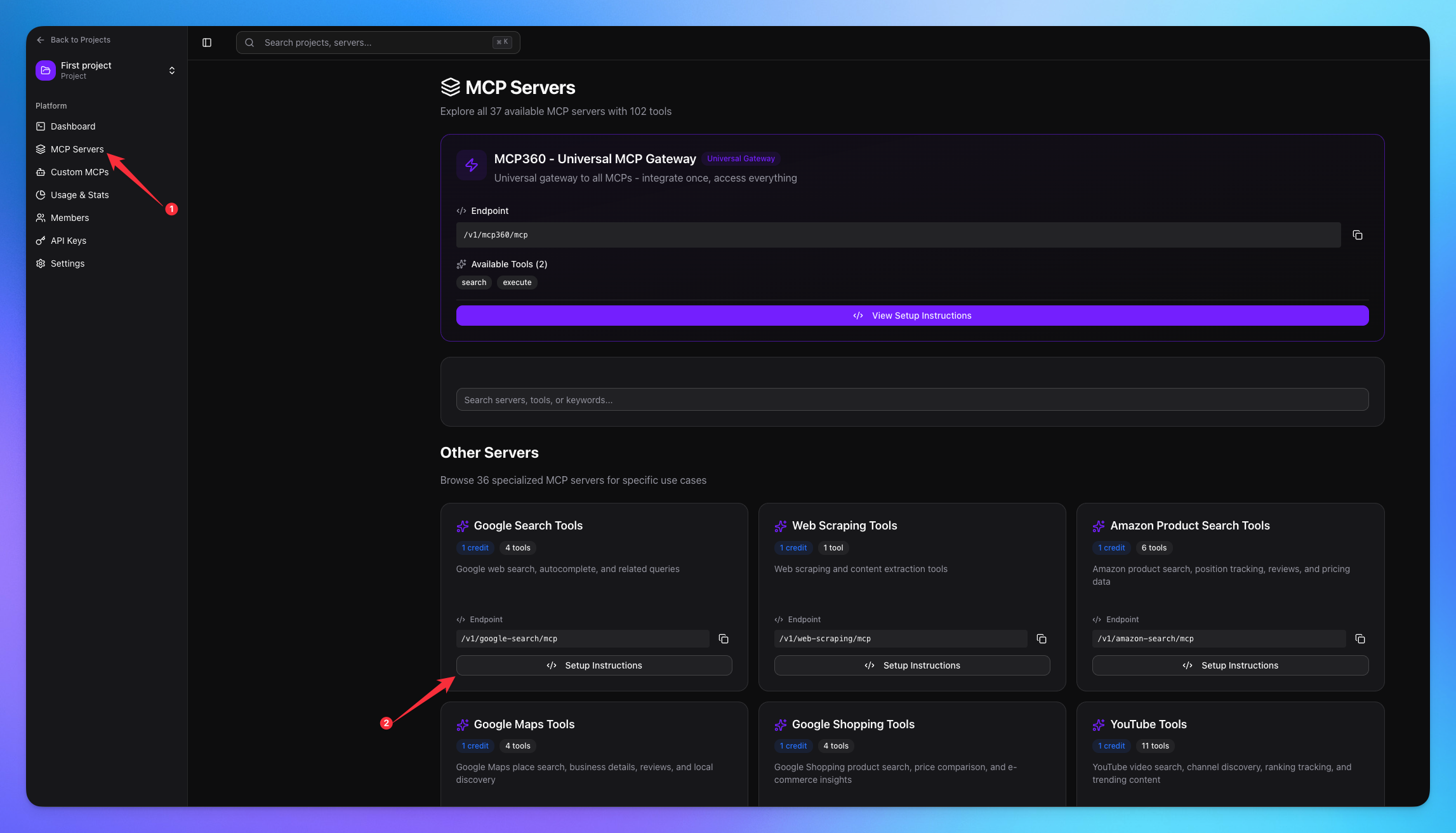
Copy URL of any tool you want.
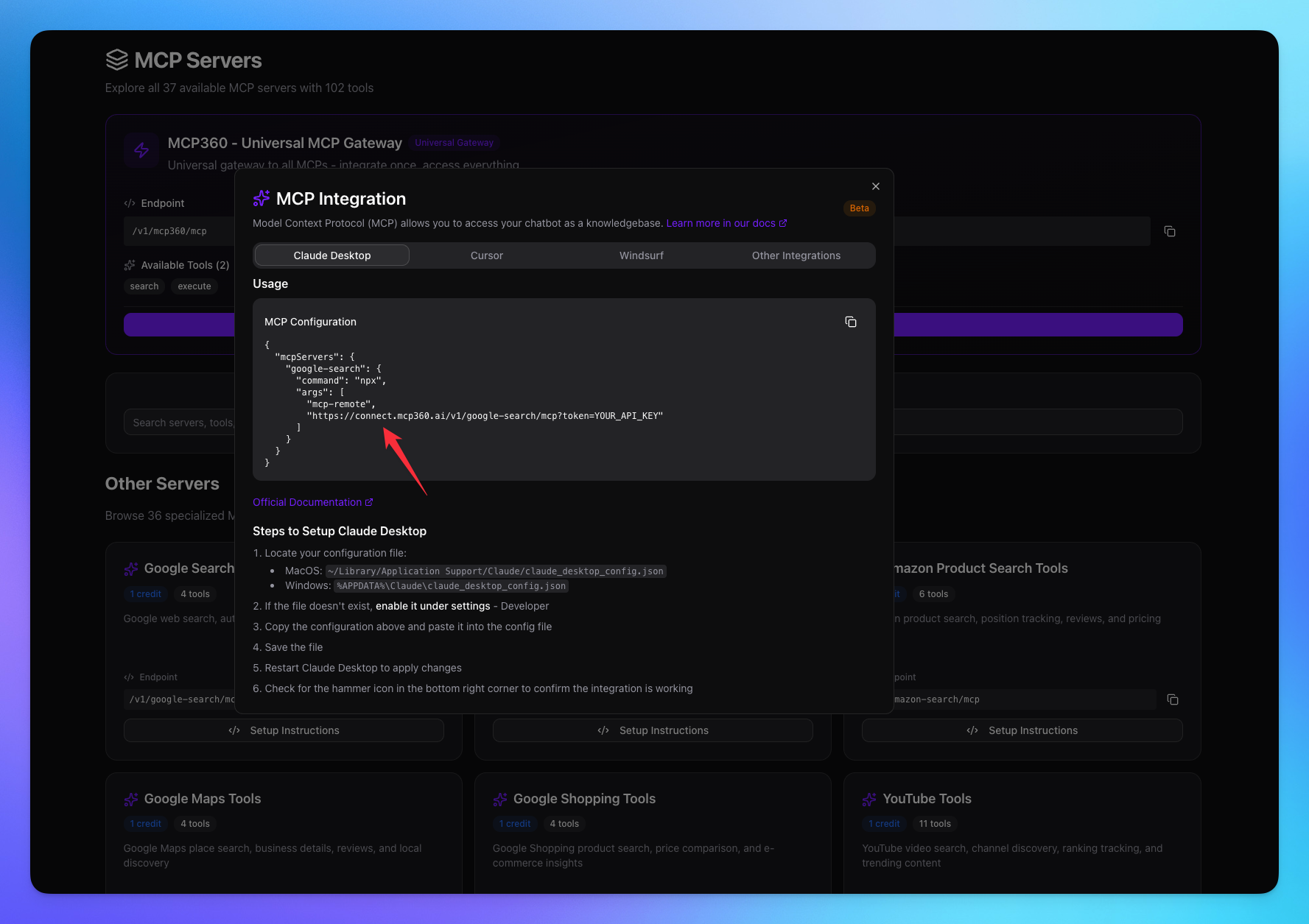
1. Open YourGPT
Login in your YourGPT account.
Navigate to Dashboard.
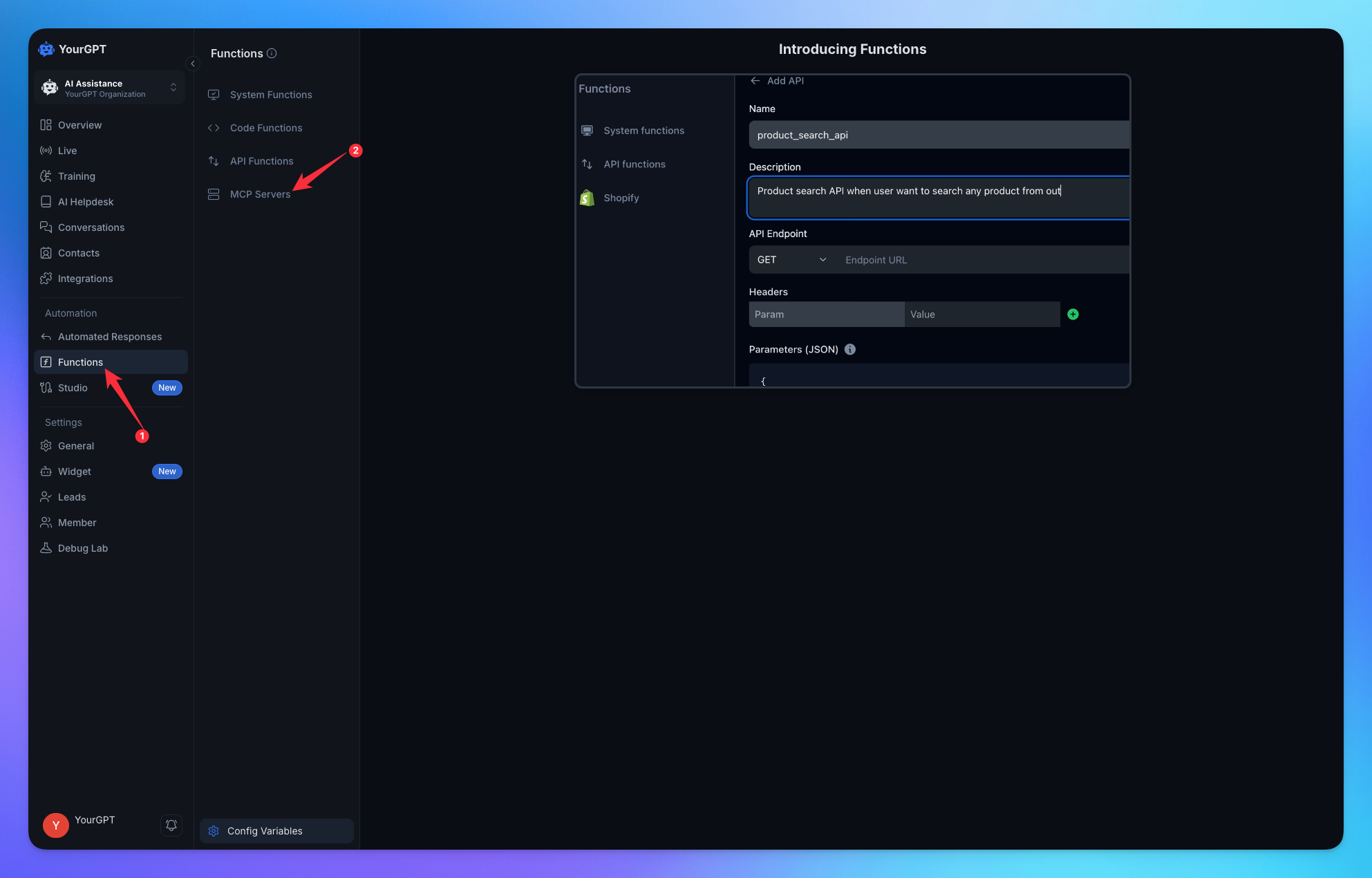
Go to Function from Sidebar.
Open MCP Servers option.
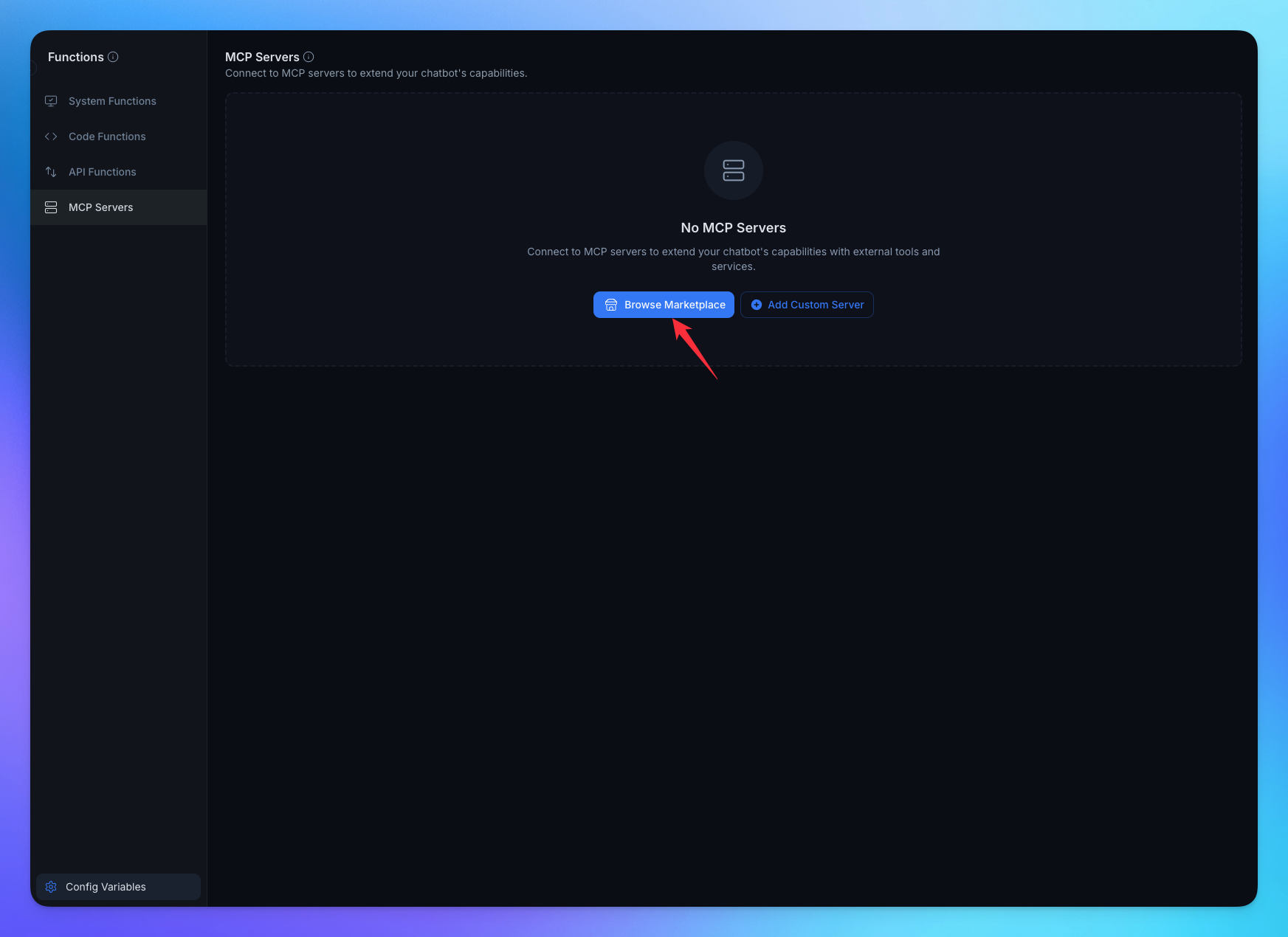
Click on Browse Marketplace.
Select MCP from Marketplace.
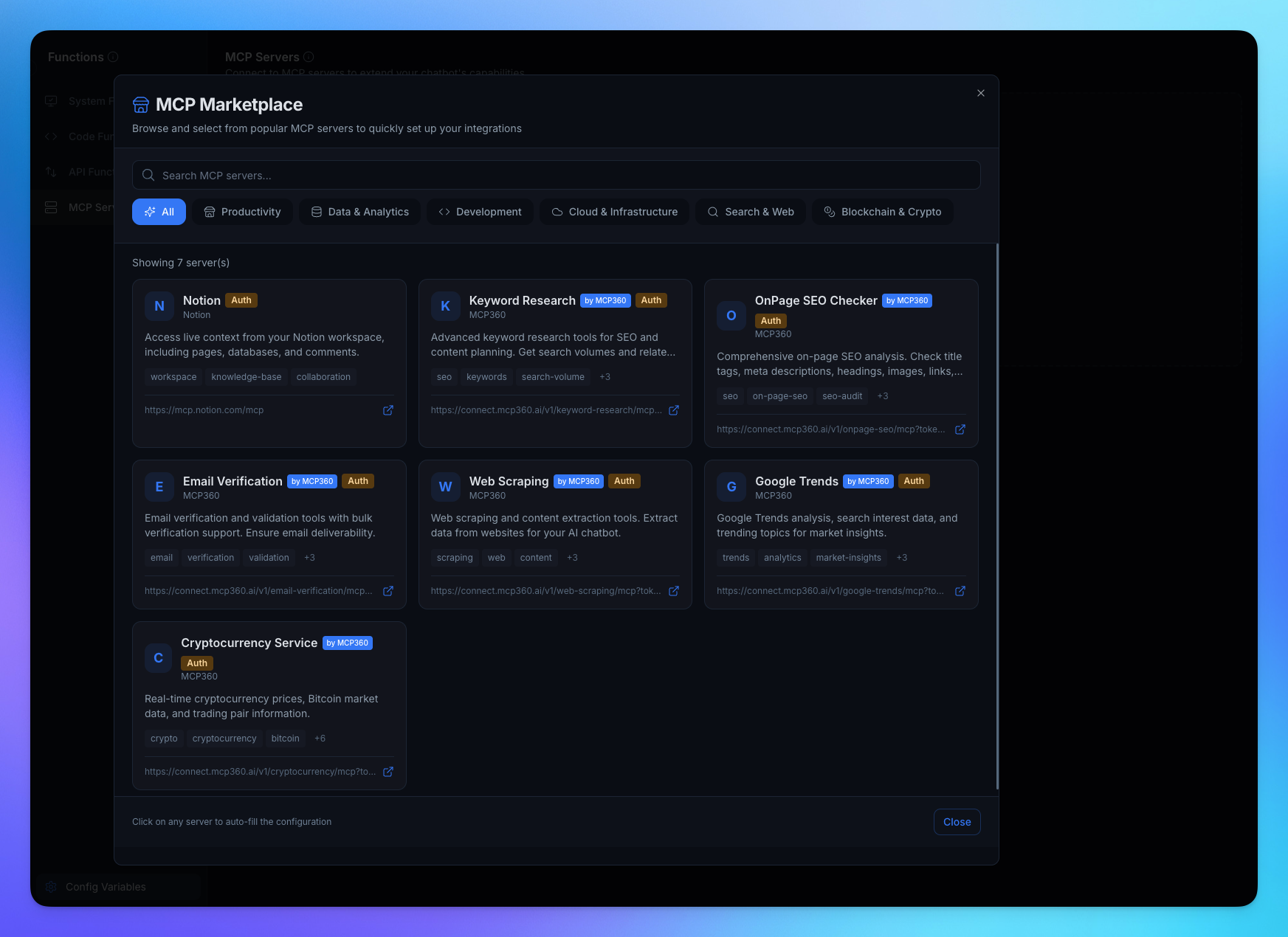
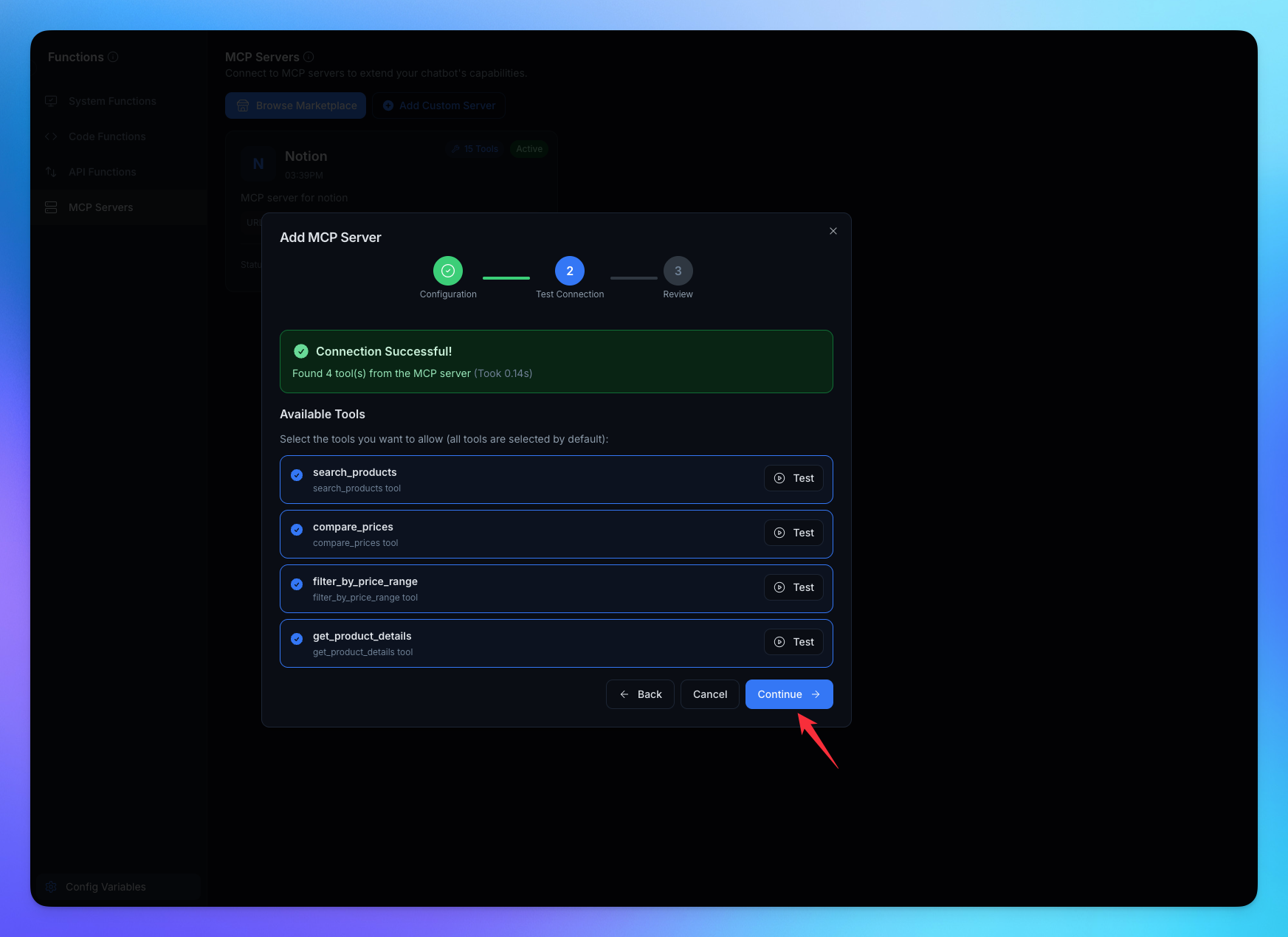
Test connection of MCP Server.
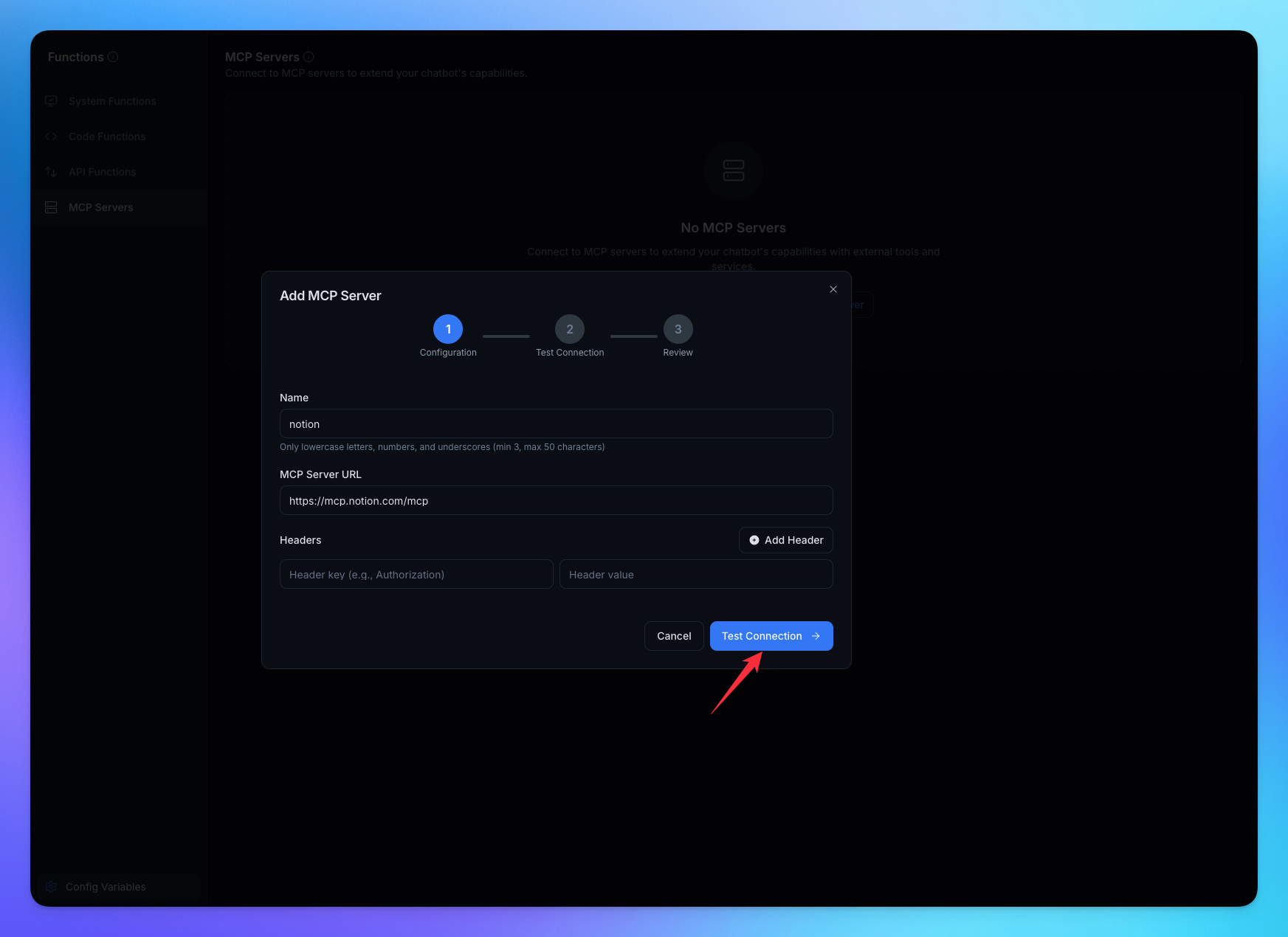

Click on Create Function.
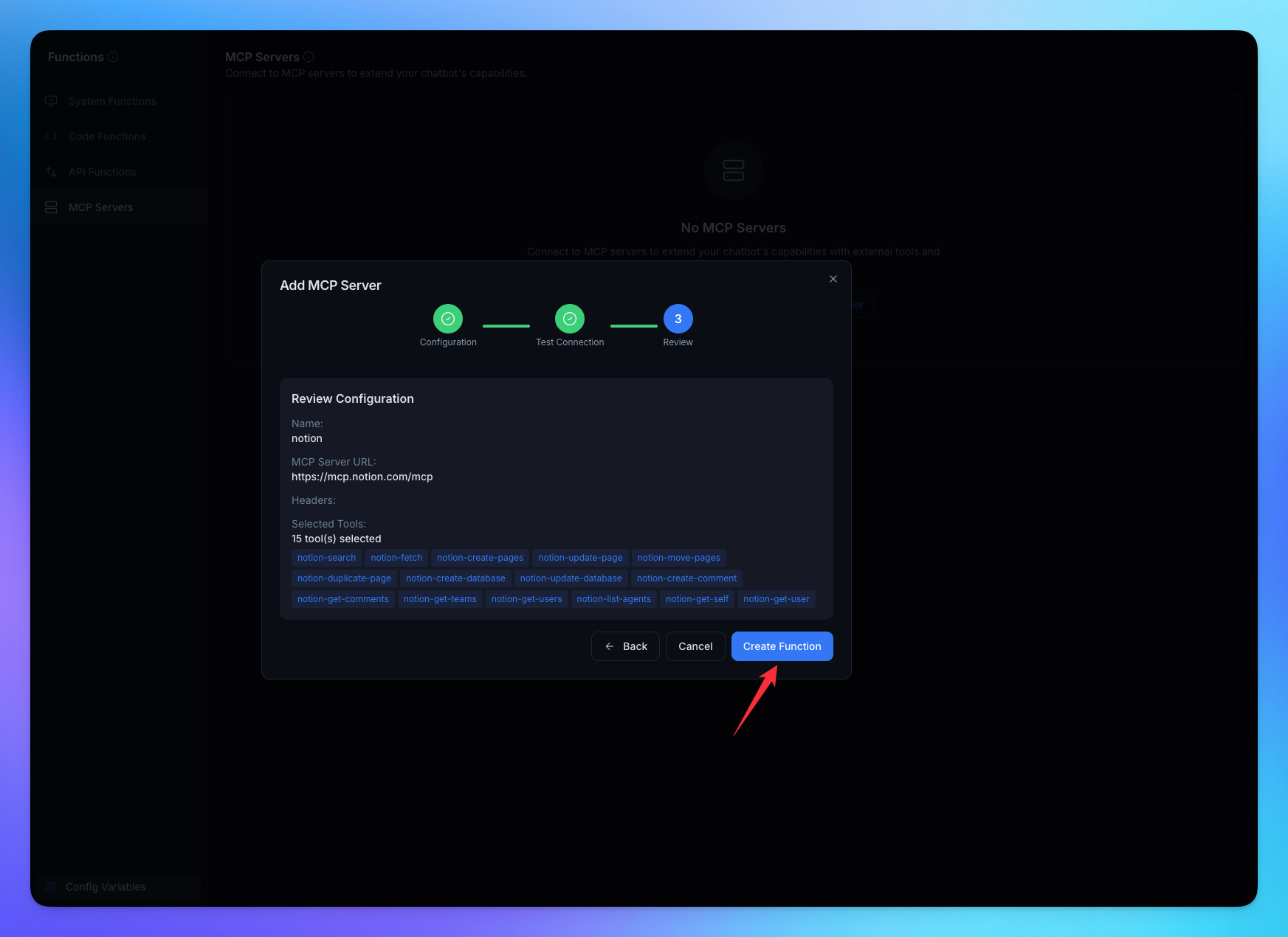
2. Add Custom MCP Server
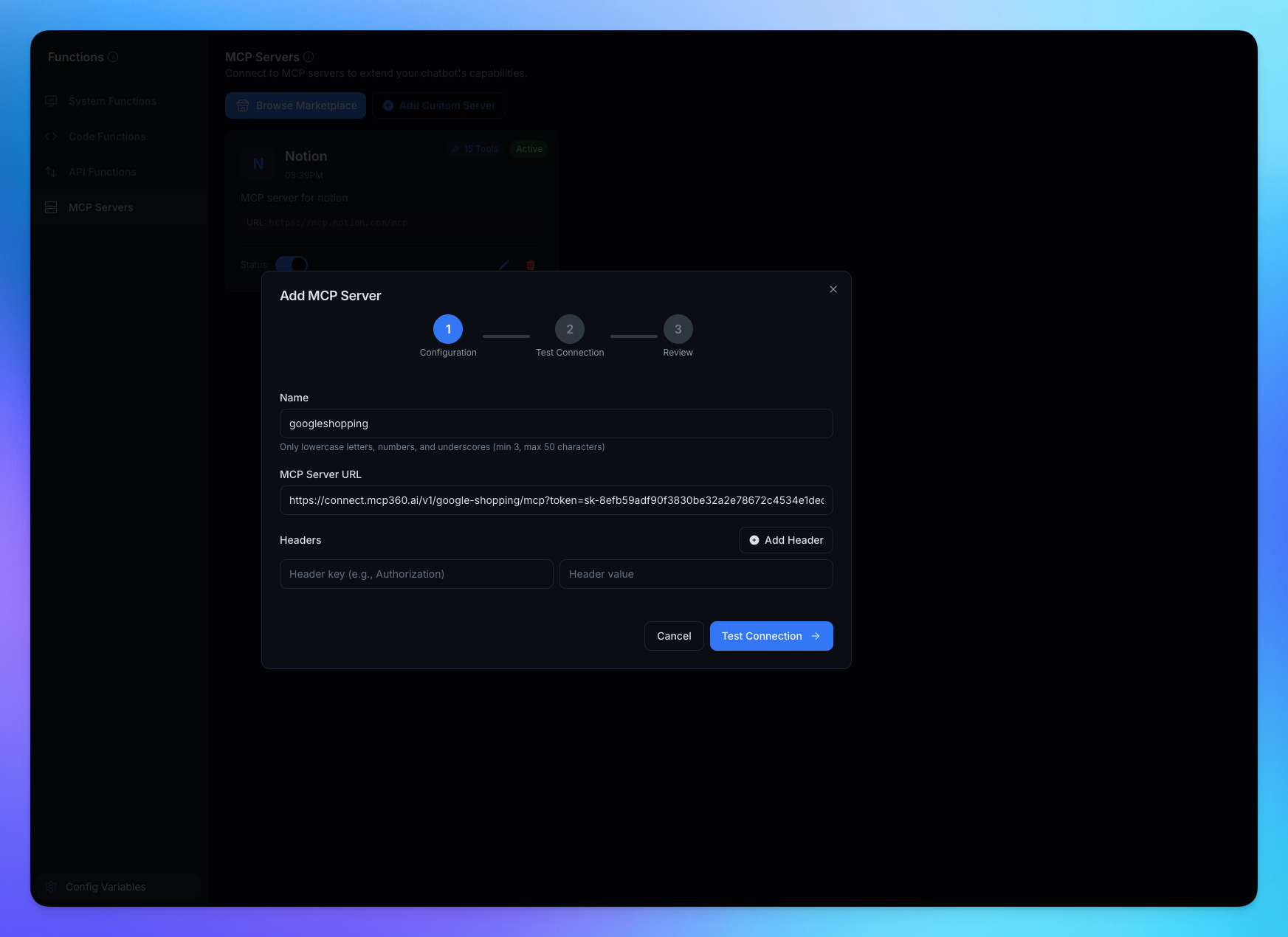
Click on Add Custom Server option.
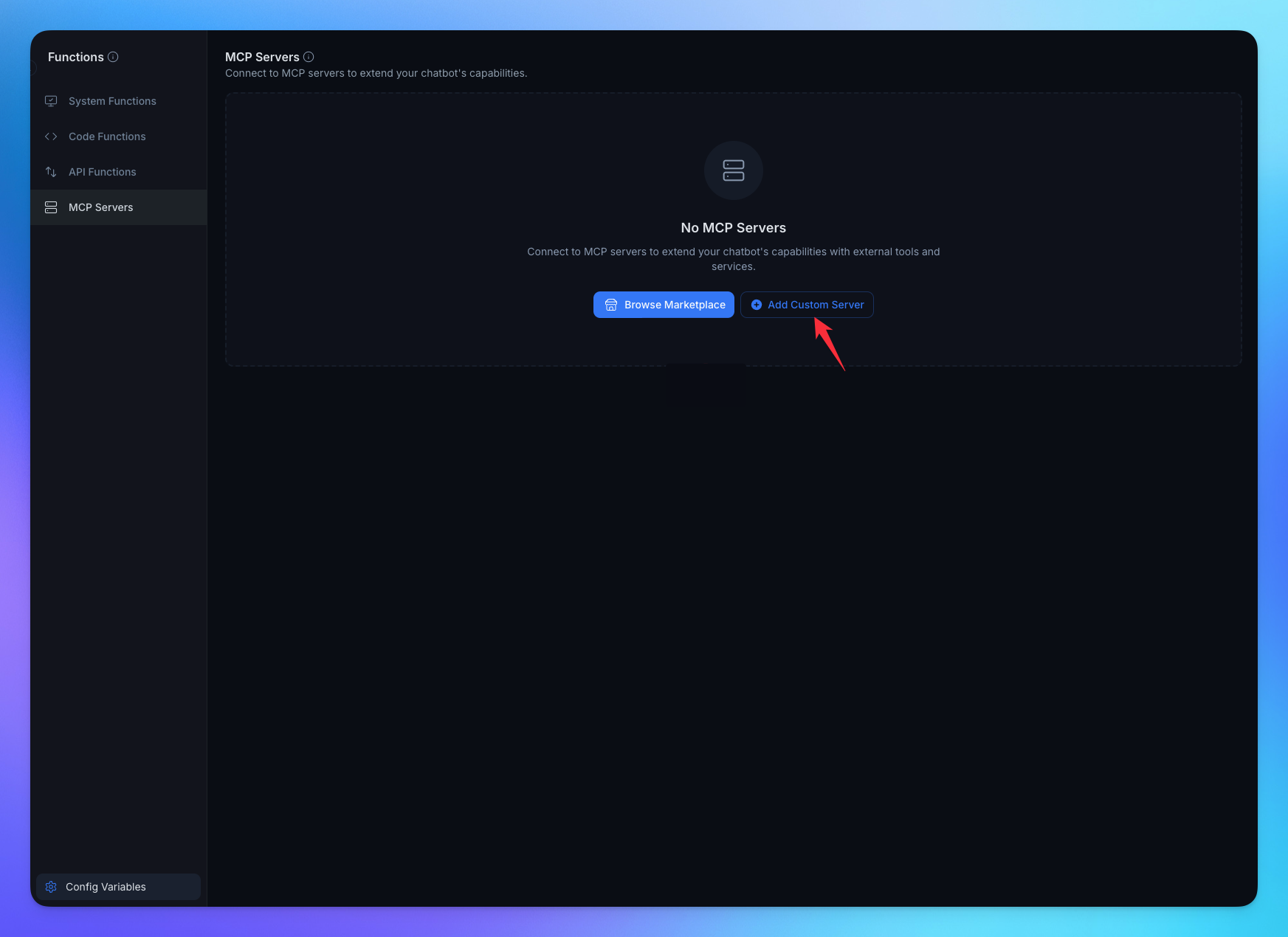
Add MCP name.
Add MCP Server Url.
Click on Test Connection.
Tools from added from Server.
Create Custom MCP Function.
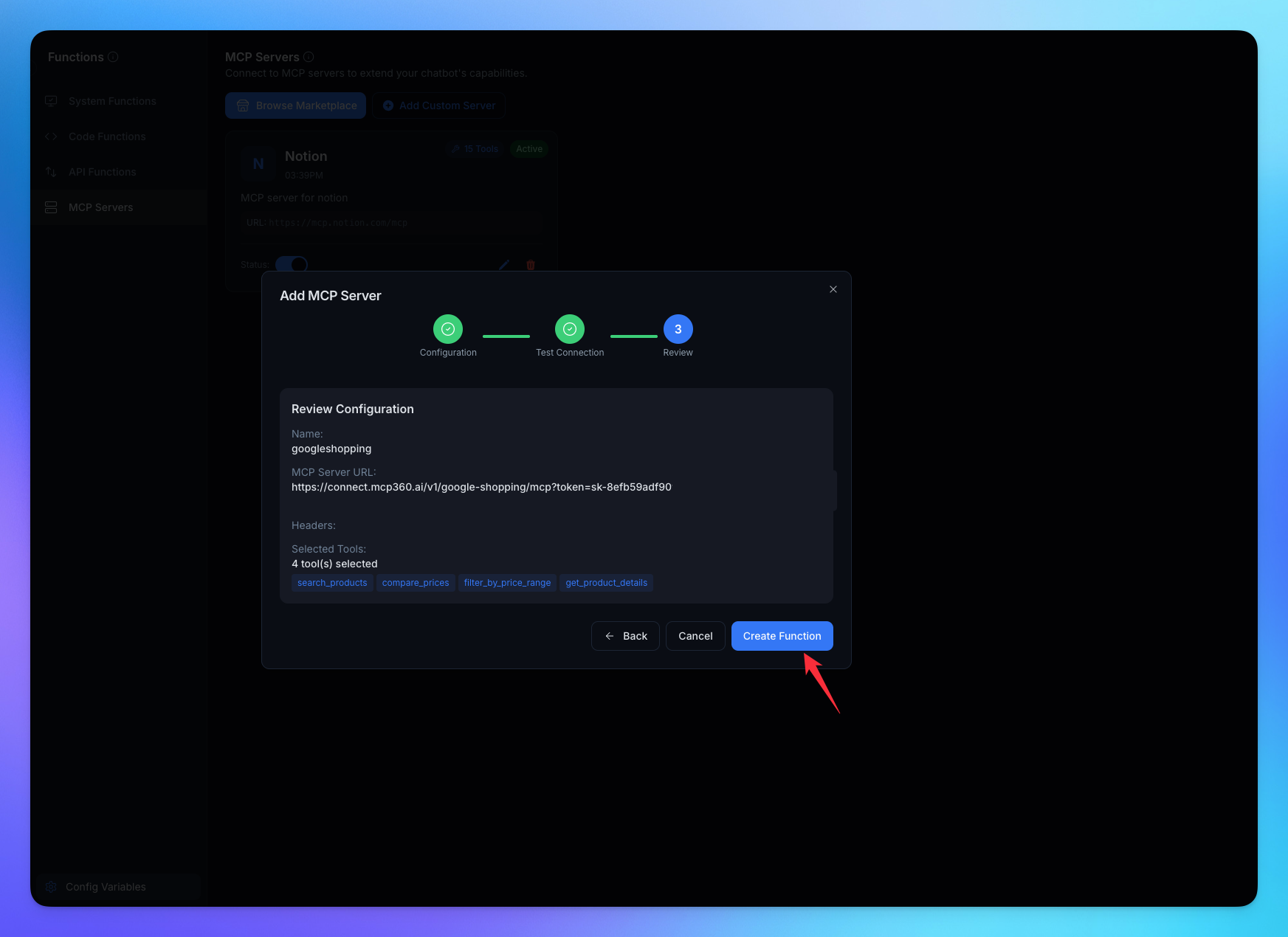
You’re all set! YourGPT is now connected to your MCP360 server, enabling you to access any MCP tool with the required parameters for smooth testing and automation.
Related Articles
Connecting OpenClaw with MCP360
This guide explains how to connect MCP360, our all-in-one MCP (Model Control Protocol) server, with OpenClaw.
Connecting MCP360 with ChatGPT
This guide explains how to integrate MCP360, our all-in-one MCP (Model Control Protocol) server, with the ChatGPT.
Connecting MCP360 with Flowise
This guide explains how to integrate MCP360, our all-in-one MCP (Model Control Protocol) server, with the Flowise.
Connecting MCP360 with N8N
This guide explains how to integrate MCP360, our all-in-one MCP (Model Control Protocol) server, with the N8N.
Connecting MCP360 with Agent Builder
This guide explains how to integrate MCP360, our all-in-one MCP (Model Control Protocol) server, with the Agent Builder.
Connecting MCP360 with Amazon Q
This guide explains how to integrate MCP360, our all-in-one MCP (Model Control Protocol) server, with the Amazon Q.