
Onboarding in MCP360
Create your MCP360 account in minutes to access your dashboard. Complete the registration by adding your basic details and setting a password. Once logged in, you can begin setting up your workspace and managing your account from one place.
1. Getting Started with Your MCP360 Account Settings
Your MCP360 setup begins from the profile menu in your dashboard.
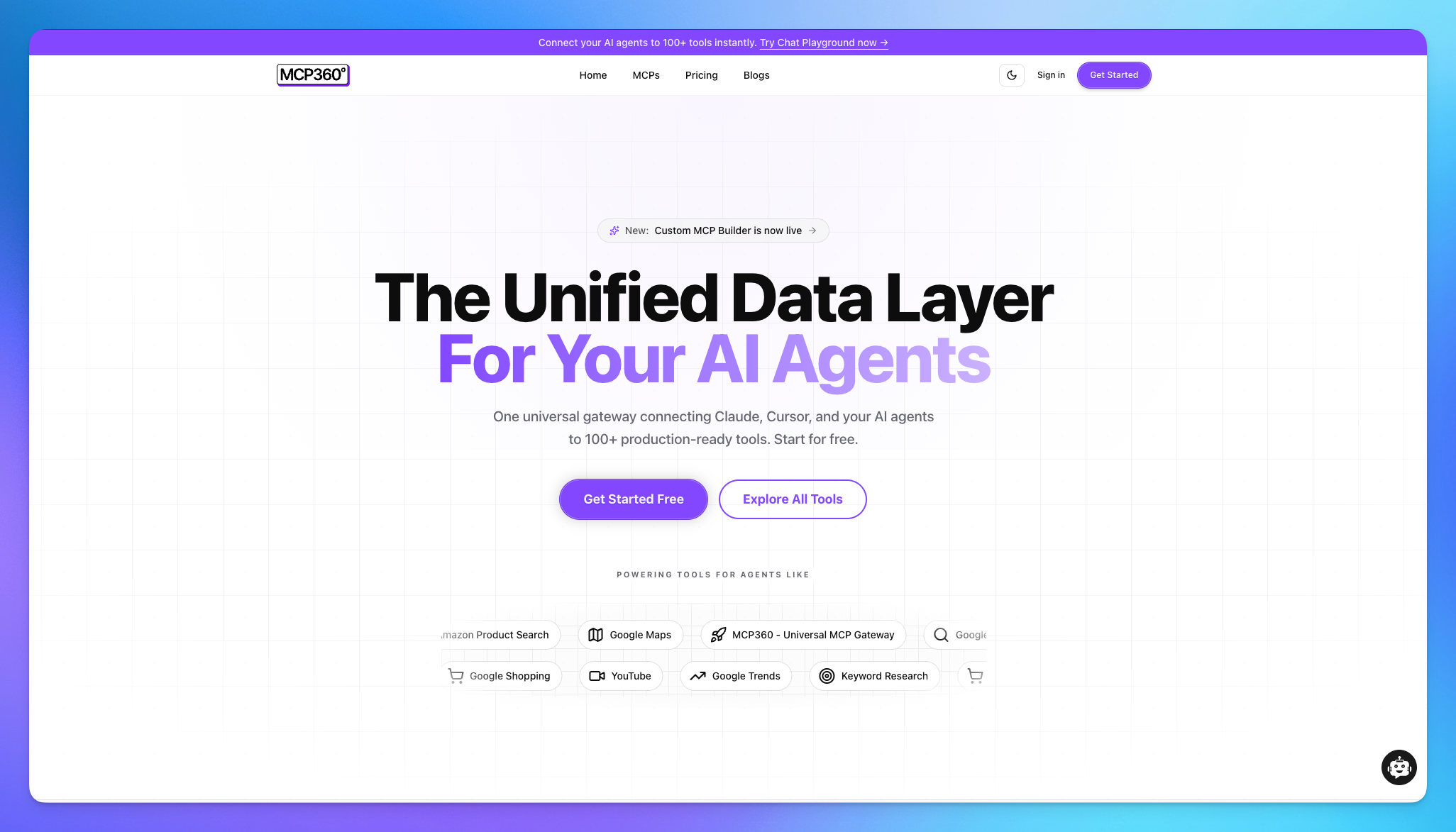
Account Sign in
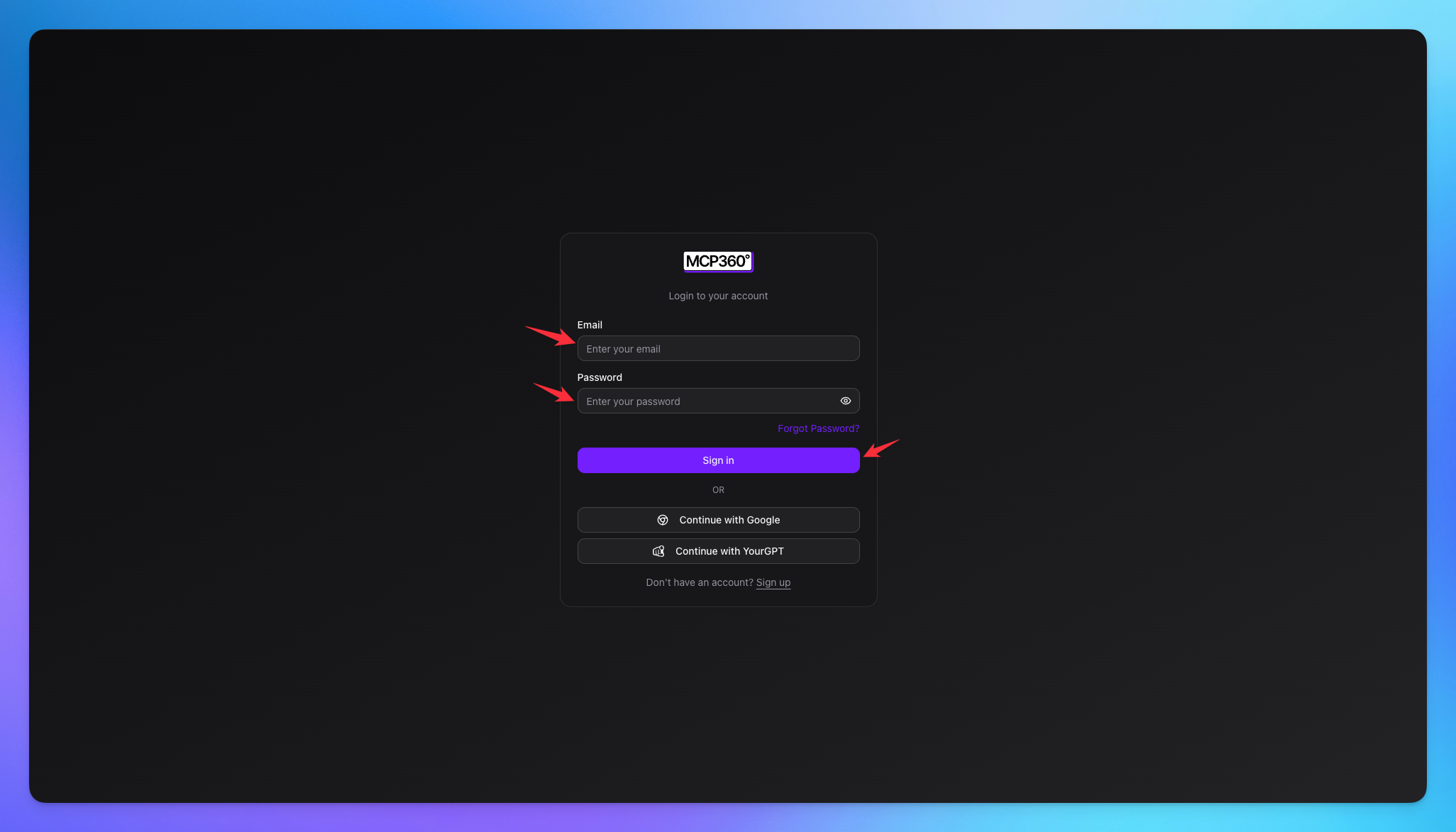
Log in to your MCP360 account using your registered email and password.
Users can log in to MCP360 using their YourGPT account credentials.
Account Sign Up
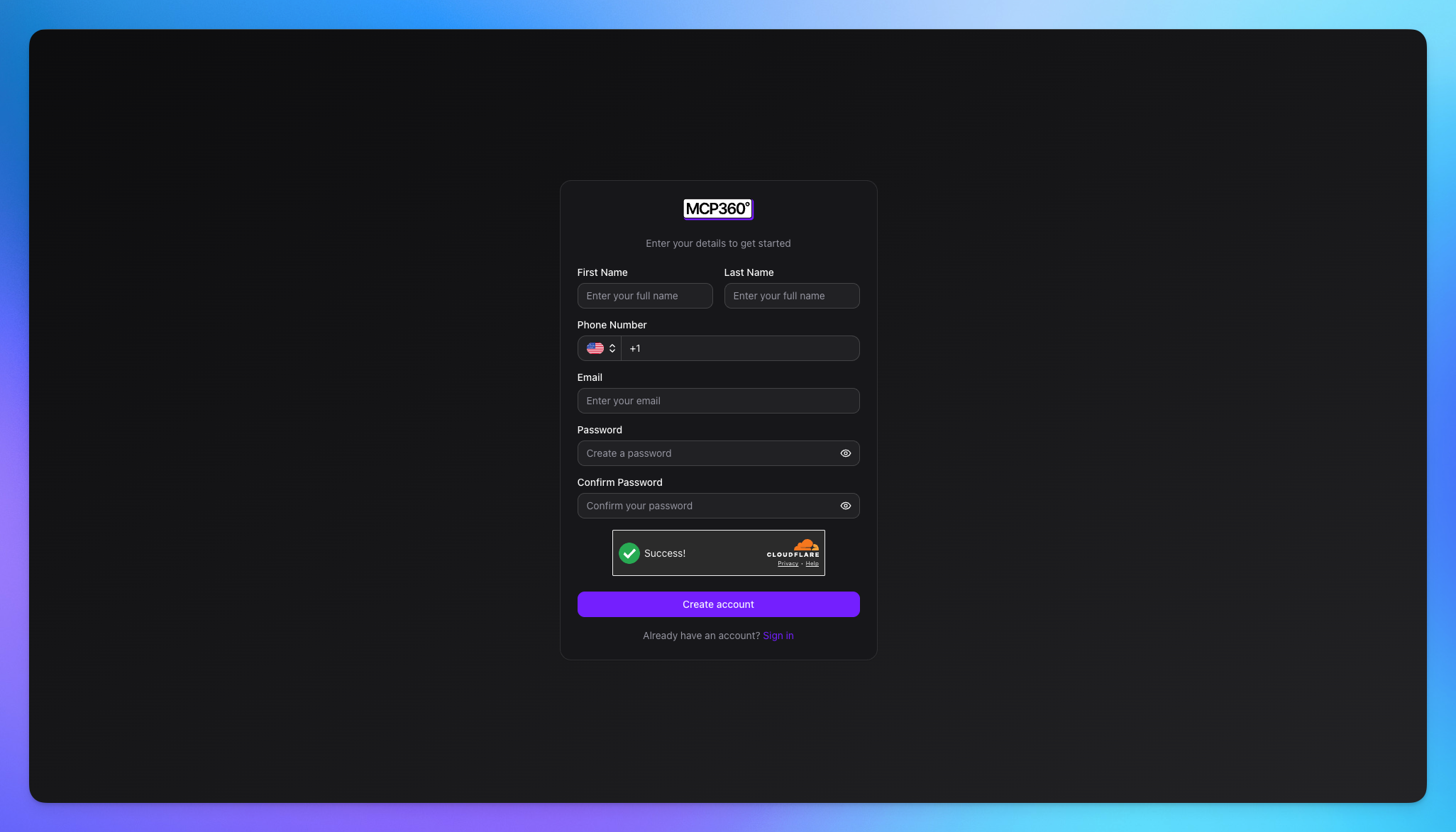
Create a new MCP360 account if you don’t have one already.
Enter your first name and last name.
Add your email address.
Set a password and confirm it to complete registration.
This onboarding document walks you through creating your MCP360 account and logging in for the first time. It covers entering your personal details, setting and confirming your password, and accessing your dashboard. Once completed, you’ll be ready to start using MCP360 without any setup confusion