
Manage and Upgrade Your MCP360 Plan
This section guides you through upgrading your MCP360 subscription from the dashboard. You can choose a new plan, complete payment securely, and apply the upgrade instantly to access additional features and usage limits.1. Getting Started with Your MCP360 Account Settings
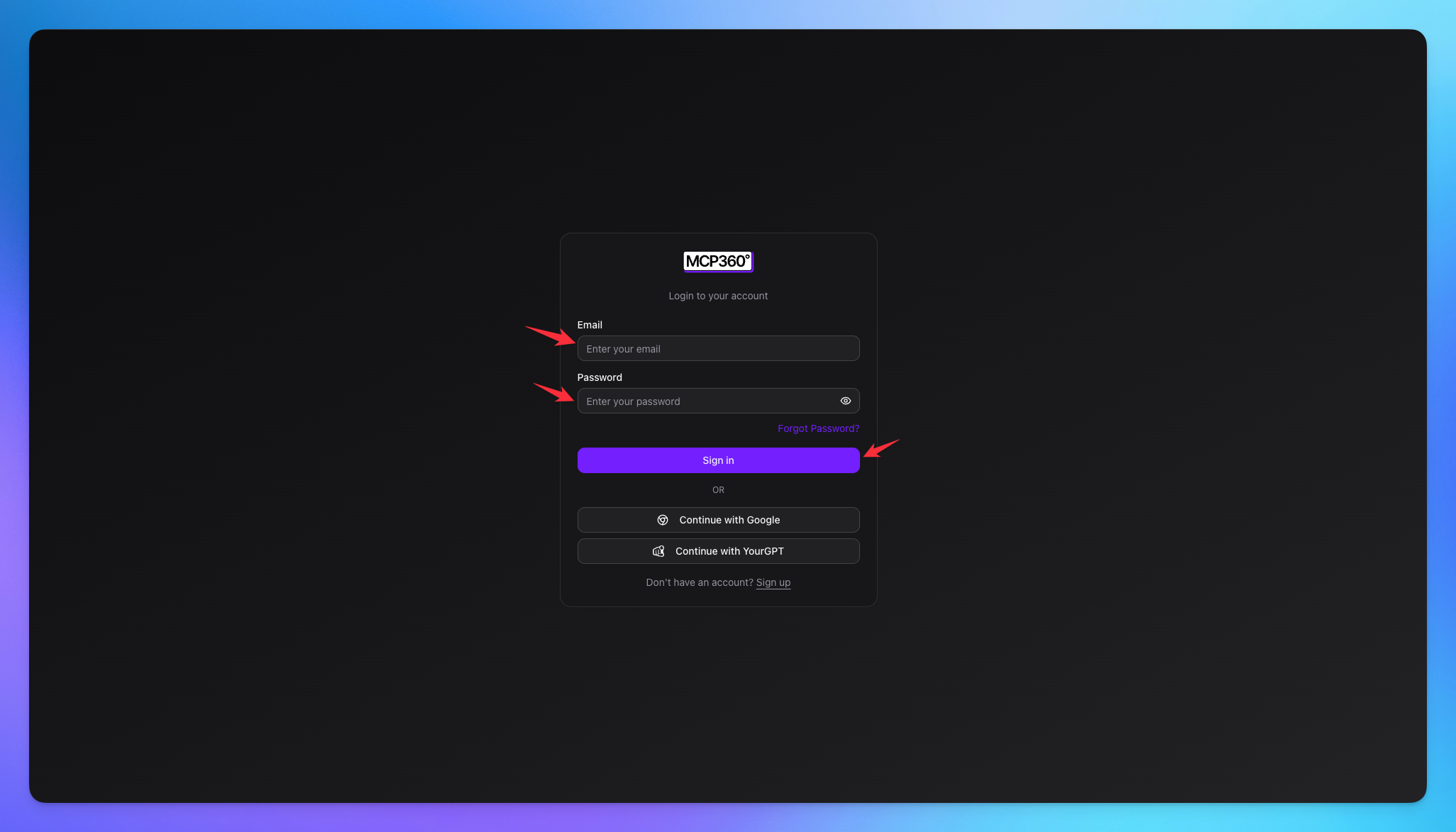
Login to MCP360
Login to you mcp360 account.
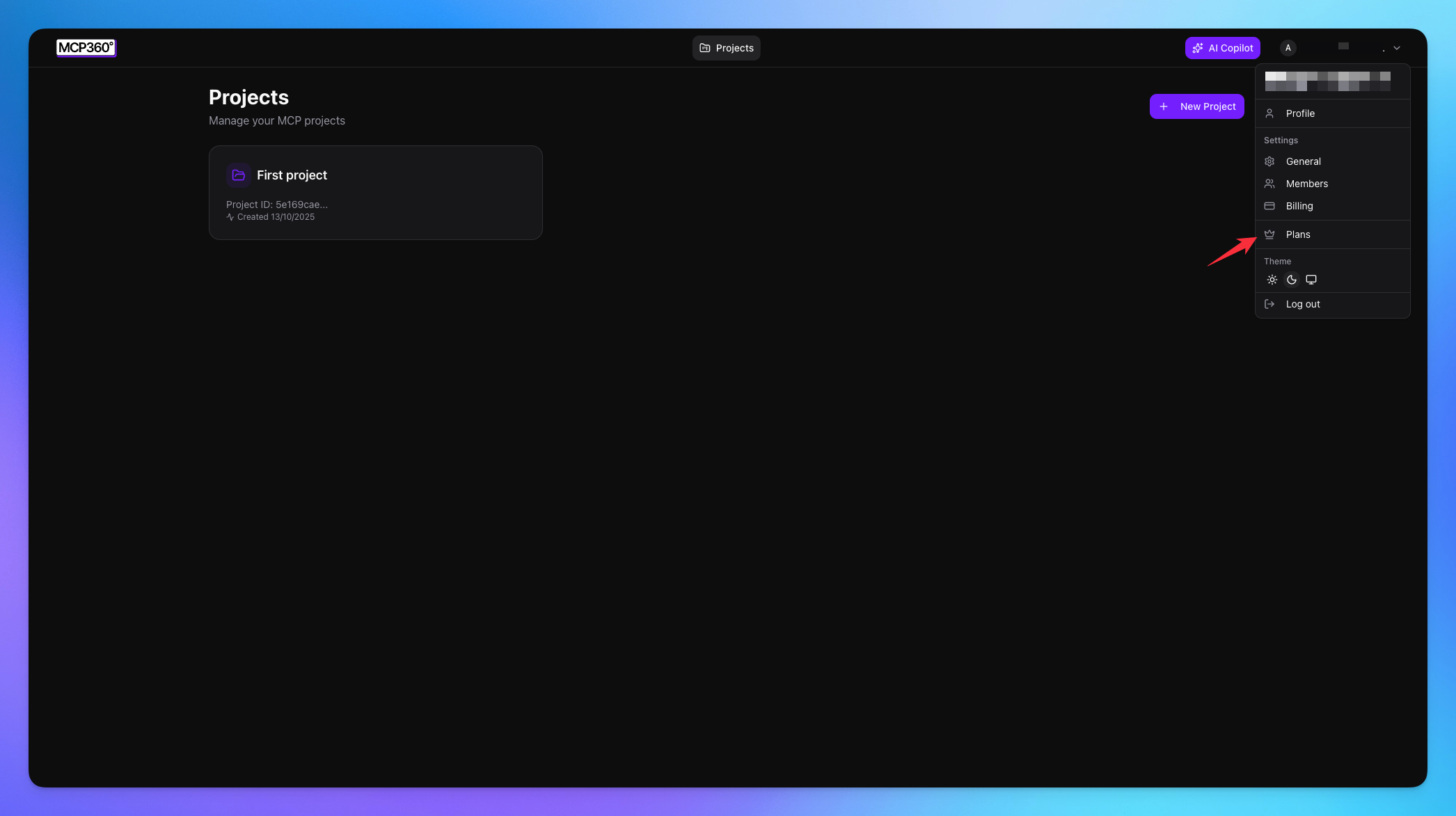
Navigate to Plans
Click on the profile button.
Select the Plans option.
Upgrade Your MCP360 Plan
Choose a plan based on your project scale, team size, and monthly credit needs. You can switch between monthly and yearly billing and add extra credits anytime.
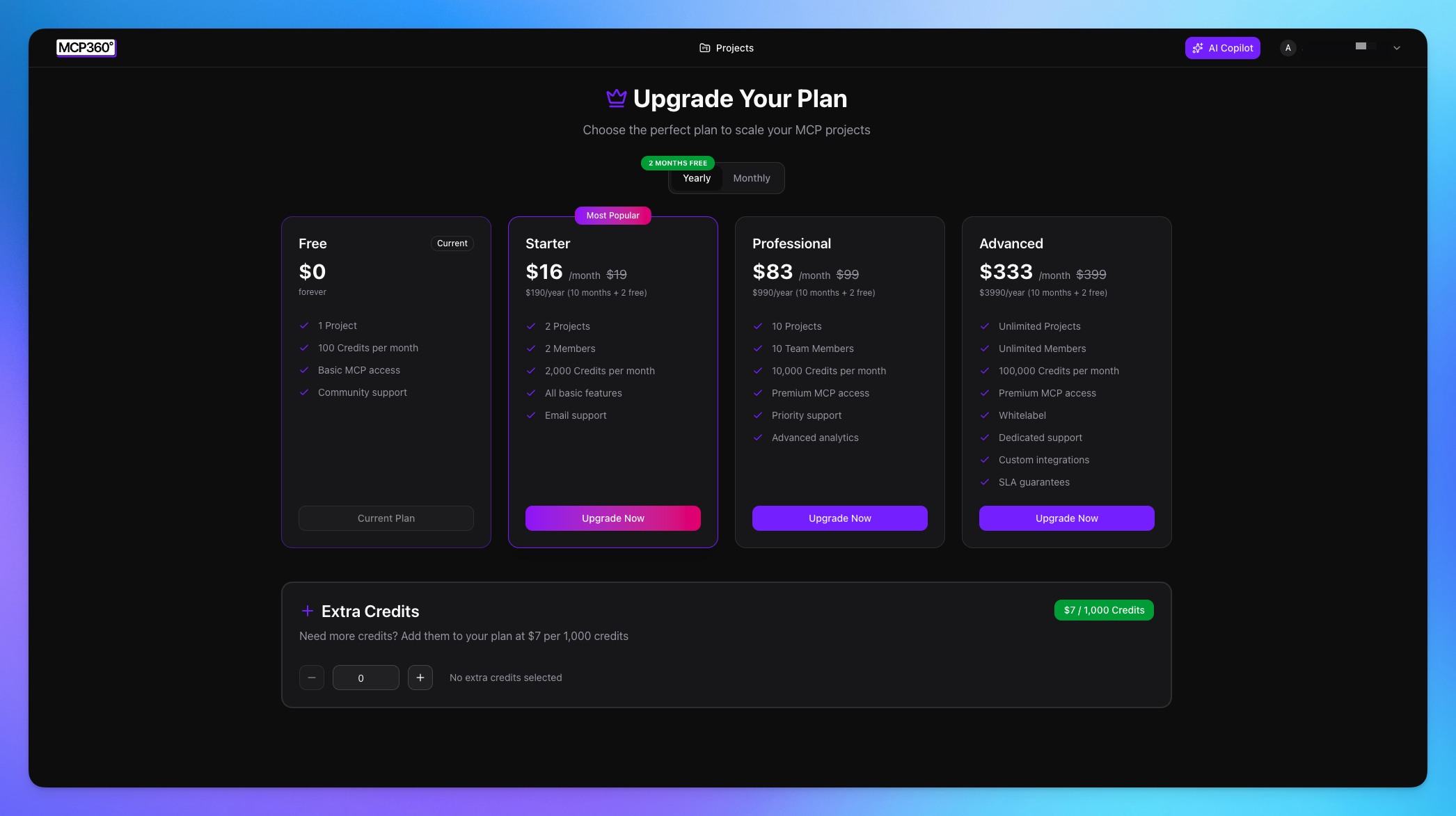
Free Plan
Start using MCP360 with one active project and basic platform access
Includes monthly credits to test MCP workflows and features
Best for learning, testing, and small personal use
Starter Plan (Most Popular)
Manage up to two projects with support for small teams
Get higher monthly credits to run real MCP use cases
Includes all core features with email support for help
Professional Plan
Scale across multiple projects with full team collaboration
Higher credit limits for frequent automation and AI usage
Includes premium MCP access, analytics, and priority support
Advanced Plan
Run unlimited projects with no team size restrictions
Designed for heavy MCP workloads and enterprise workflows
Includes premium features, custom integrations, and dedicated support
Extra Credits
Add more usage credits anytime without changing your plan
Ideal for temporary spikes in workload or testing new workflows
Credits apply instantly to your current subscription
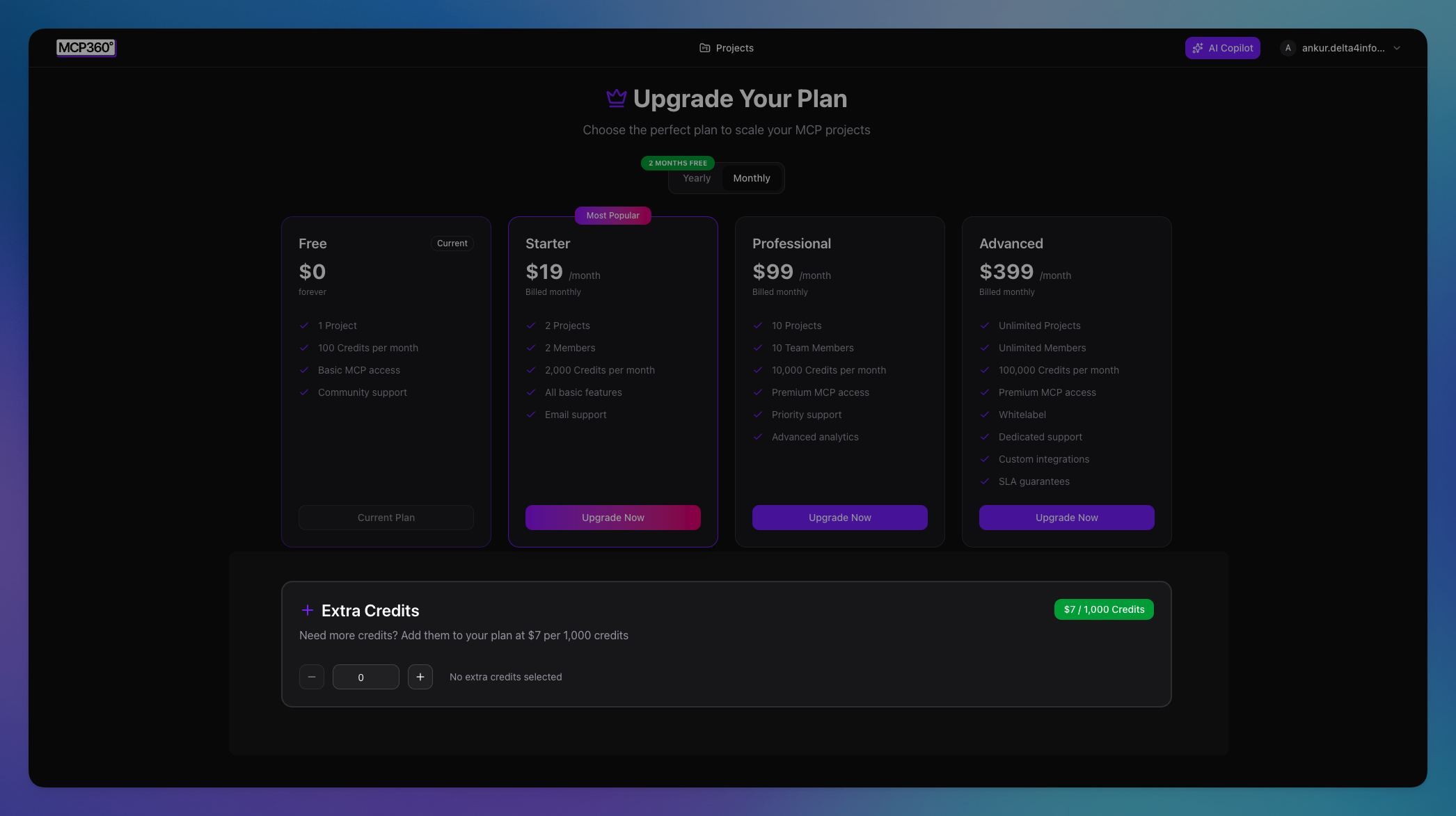
MCP360 makes it easy to move between plans as your usage grows. You can upgrade at any time, add extra credits when needed, and manage your subscription directly from the dashboard to match your project and team requirements.